TUI (Interactive Terminal Interface)
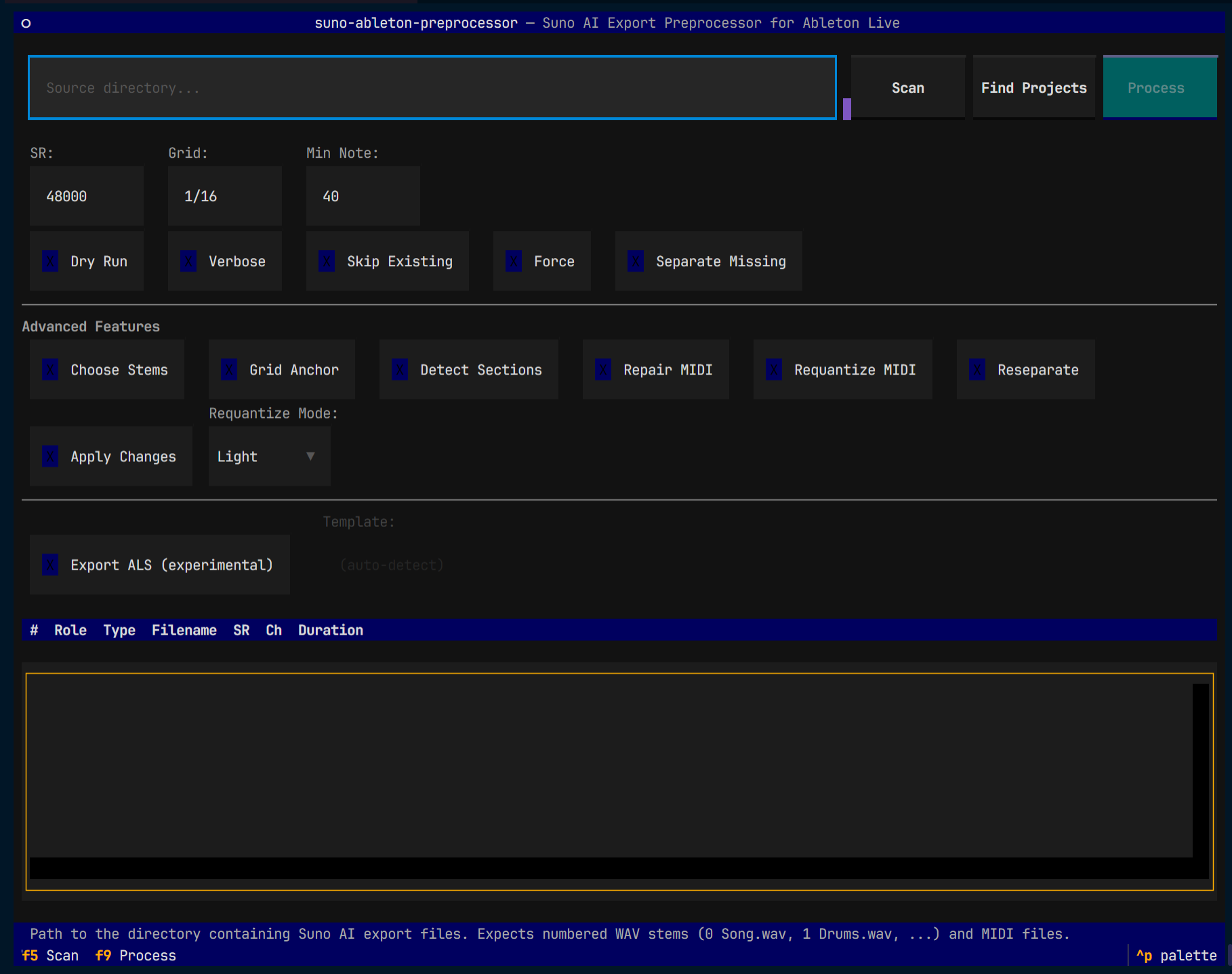
The TUI provides a point-and-click terminal interface for the preprocessor.
Requirements
Install the tui extra:
Launch
Keyboard shortcuts
| Key | Action |
|---|---|
| F5 | Scan the source directory |
| F9 | Run the processing pipeline |
| d | Toggle dark/light mode |
| q | Quit |
During processing:
| Key | Action |
|---|---|
| Escape | Cancel processing |
| Enter / q | Close the results screen (after pipeline finishes) |
Workflow
1. Set source directory
Enter the path to your Suno export folder, or use Find Projects to recursively scan for project directories.
2. Scan
Click Scan (or press F5) to discover audio stems and MIDI files. The inventory table shows what was found — filename, type, sample rate, channels, and duration. Hover any widget to see help text in the bottom bar.
3. Configure
Toggle options with checkboxes. The TUI exposes all the same options as the CLI:
- Core options — dry run, verbose, skip existing, force overwrite, stem separation
- Advanced features — stem comparison, grid anchor, section detection, MIDI repair, requantization
- ALS export — generate an Ableton Live Set (template auto-detected)
4. Process
Click Process (or press F9) to open the processing screen. It shows:
- Step table — real-time status of each pipeline step with elapsed time
- Log — live console output from the pipeline
- Results tabs — after completion, browse processed stems, MIDI files, feature results, and warnings
5. Review
When the pipeline finishes, use the tabs to review results, then press Enter to close.